How to factory reset a Google Chromebook before selling it on eBay or Facebook
You found a Chromebook at a thrift store, in a closet, or on a pile of stuff a friend was tossing. Now you want to flip it. Before you list it, you need to wipe it clean. Selling a Chromebook with someone else’s Google account still signed in is a non-starter. It can’t be set up by the next owner, it’s a privacy mess, and it’s the fastest way to get a refund request a week after the sale.
The good news: factory resetting a Chromebook (Google calls it a “Powerwash”) takes about two minutes. Here’s the exact process I use before every Chromebook listing, plus a few things to check before you ship.
Before you reset: check these three things first
A bit of prep saves you from refund headaches later.
1️⃣ Make sure it’s not a school or work device. This is the big one. If you see a message like “This device is managed by [school/company name]” when you sign in, stop. You can’t reset a managed Chromebook without admin access, and the next buyer won’t be able to use it either. Managed Chromebooks are basically worthless on the resale market unless you can get the enrollment removed. Look at the bottom of the sign-in screen for any mention of an organization. If you see one, contact the original owner or the school’s IT department before you list it.
2️⃣ Check the AUE (Auto Update Expiration) date. Every Chromebook has a date after which Google stops pushing updates. Once a Chromebook is past its AUE, it still works, but it won’t get security patches and some apps will start to break. Buyers care about this. To check, go to Settings, then About ChromeOS, then Additional details. You’ll see the AUE date listed there. Mention it in your listing. Honest sellers get better reviews.
3️⃣ Plug it in. A Powerwash takes a few minutes, but if the battery dies mid-reset you can end up in a weird state. Just plug it in.
How to factory reset a Chromebook (the standard way)
This is the method to use if you can sign into the device. If you don’t have the password, skip to the next section.
Sign into the Chromebook.
Sign out again (yes, really). Click the time in the bottom-right corner, then click Sign out.
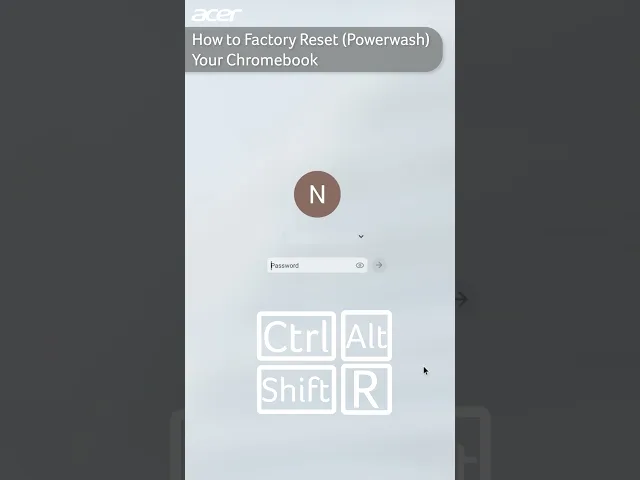
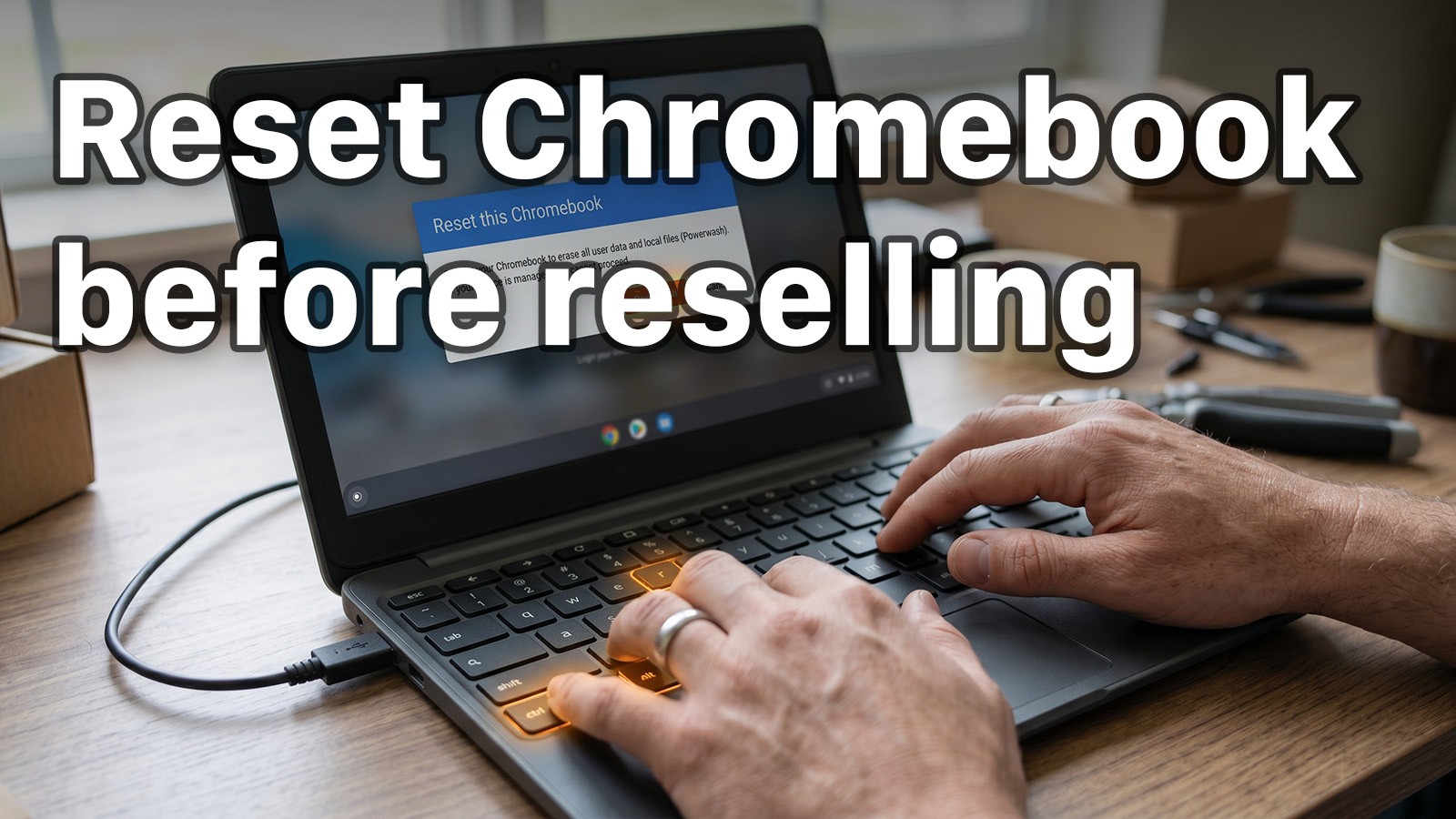
Press and hold Ctrl + Alt + Shift + R on the sign-in screen.
A window will pop up. Click Restart.
After the device restarts, you’ll see a Reset confirmation box. Click Powerwash, then Continue.
Wait. The reset takes a couple of minutes.
When it’s done, the Chromebook will boot up to the welcome screen, exactly like it did out of the box. Do not sign in. If you sign in with your account, you become the new “owner account” on the device, which defeats the whole point. Just shut it down at the welcome screen and the next buyer will set it up themselves.
How to reset a Chromebook without the password
This is the situation you’re in most often as a reseller. You bought a used Chromebook, you don’t have the password, and the previous owner is long gone. No problem.
From the sign-in screen (no need to log in), press and hold Ctrl + Alt + Shift + R.
Click Restart.
After the reboot, click Powerwash, then Continue.
Confirm and let it run.
That’s it. The keyboard shortcut works from the sign-in screen, which means you don’t need anyone’s password to wipe the device clean.
What if Powerwash doesn’t work?
A couple of things can trip up a reset:
Managed device blocking. If the Chromebook was enrolled in a school or company, the Powerwash option may be greyed out or blocked entirely. There’s no consumer-side fix for this. The device needs to be deprovisioned by the organization’s admin.
Frozen or unresponsive Chromebook. Try a hard reset first. Hold the Refresh key (the circular arrow above 3 and 4), then press Power. Hold both for about 10 seconds. The device will restart. Once it’s back at the sign-in screen, try the Powerwash steps again.
“ChromeOS is missing or damaged” message. This usually means the device needs a recovery using a USB drive. Google has a Chromebook Recovery Utility you can run from another computer. It takes longer, but it’ll bring the device back to a sellable state.
Watch it happen (video)
If you’d rather see the process before you try it, the Google Chromebook Help channel has a short walkthrough:
After the reset: what to do before you list
The Powerwash is the most important part, but a few extra steps will get you a higher sale price and fewer questions from buyers.
Test that it boots cleanly. After the reset, let it boot to the welcome screen and confirm it gets there without errors. Don’t sign in. If you see anything odd (a forced enrollment screen, a “managed device” warning, an error code) you’ll want to address it before listing.
Inspect the hardware. Open the lid all the way. Test the keyboard by pressing every key (a quick way is to open a text field after a partial setup, or just press them and listen for clicks). Check the trackpad, the ports, the hinge, the screen for dead pixels, and the webcam. Buyers will ask, and you’ll get fewer “item not as described” claims if you already know.
Take real photos. Used electronics sell on photos more than anything else. Show the actual device from multiple angles, including any wear and tear. Honest, well-lit photos from your own kitchen counter outperform stock images every time. If you’re not sure how to shoot good listing photos, our guide to product photography walks through the basics.
Note the AUE date in your listing. A buyer who finds out about the AUE date after the sale is a buyer who leaves a bad review. Mention it up front. It builds trust and weeds out tire-kickers.
Pricing your Chromebook
Chromebook resale prices vary wildly based on model, AUE date, and condition. A 2019 Acer with an expired AUE is basically e-waste; a 2023 Lenovo with two years of updates left can sell for well over $200. Look at sold listings (not active listings) on eBay to get a real sense of what the model goes for. If you’re using Hero Stuff, the AI will suggest a price based on the model and condition you describe, which gets you in the ballpark without an hour of research.
For more on pricing strategy across categories, check out the ultimate guide to pricing used items online.
A few common questions
Will Powerwash delete my files on Google Drive? No. Powerwash only wipes what’s stored locally on the Chromebook. Anything in Drive, Gmail, or Photos stays in the cloud, tied to the original Google account. That’s actually one reason Chromebooks are easier to flip than Windows laptops: most of the previous owner’s data was never on the device to begin with.
How long does it take? The reset itself runs in two to ten minutes. Plan on another five minutes after that if you want to confirm it boots to the welcome screen cleanly.
Do I need to remove the Google account from the device after the reset? No. Powerwash removes all accounts. The device boots up as if it’s brand new.
Can I sell a Chromebook past its AUE date? Yes, but be honest about it in the listing. Some buyers want a cheap device for a kid to do schoolwork on and don’t care about updates. Others will reject the listing on sight. The worst thing you can do is hide it.
Get it listed
Once it’s wiped, photographed, and priced, you’re ready to list. eBay is usually the right call for Chromebooks, since the buyer pool is larger and shipping electronics is easy. If you’re new to selling on eBay, our beginner’s guide to selling on Ebay covers the basics.
Wiping a Chromebook is one of the easier steps in the resale process. The hard part is finding the right device at the right price. Once you’ve got that, two minutes of Powerwash and a clean listing is all that stands between you and a sale.
Happy flipping ✌️
How to Import Shopify or WooCommerce Products to eBay and Facebook Marketplace
How to Import Shopify Products to eBay with Hero
Hero now does bulk: connect Shopify, import your catalog, list everything

Hero is now available globally 🇩🇪 🇪🇬 🇮🇳
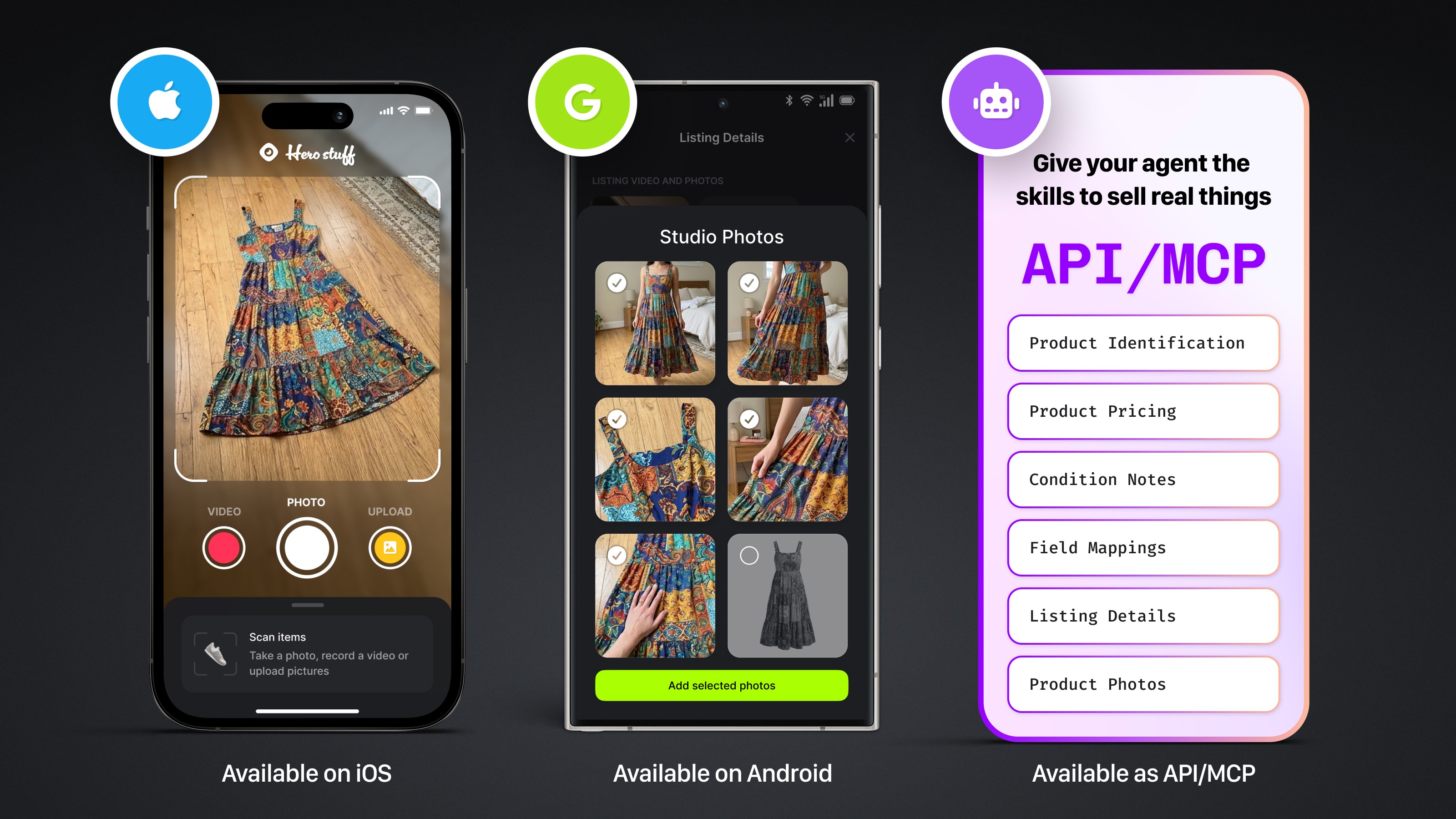
Four new ways to sell with Hero
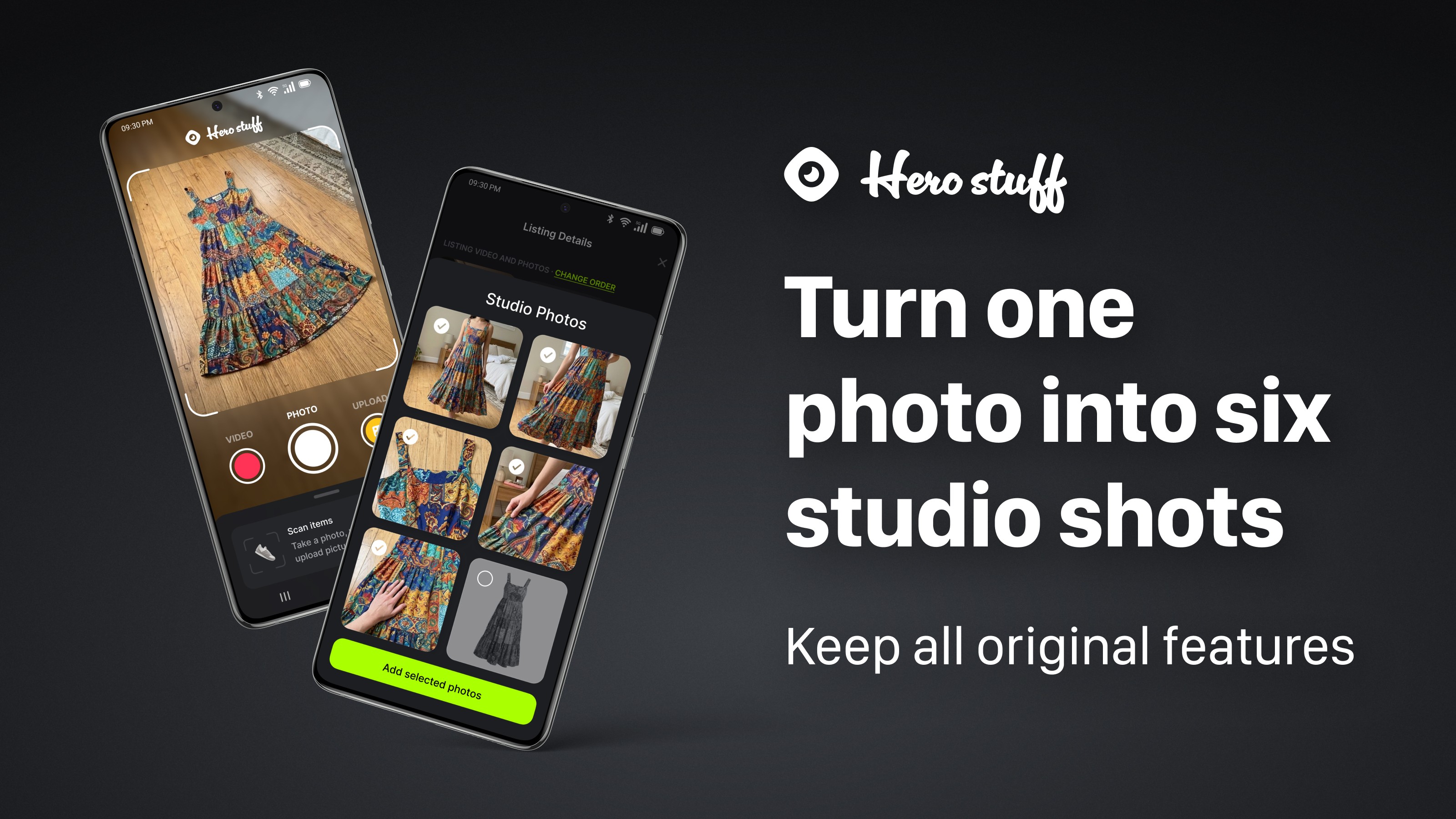
Introducing Studio Photos: Turn one photo into six studio shots
How to factory reset an iPad before selling it (step-by-step)